Maps
The GPS Waypoints is a multi sector surveying tool for professional and personal purposes. This is the part 4 of the user guide, that is composed of 4 parts for describing the installation, configuration, surveying and mapping functionalities of the product.
Part 4: Maps
-
- Maps
- Upgrade to Maps
- Visualize geodata on Maps
- Change basemaps
- Geo map layers to complement surveying
- EO Images (Maps)
- On-demand request of an Earth Observation images
- View my EO image products
- Maps
[ Index ] [ Part 1 Configuration ] [ Part 2 Location and Status ] [ Part 3 Waypoints and Paths ] [ Part 4 Maps]
Maps
Upgrade to Maps: the Maps is extra feature that allows the spatial visualization of your Points, Paths and Polygons (areas). It is a software activation feature upgradable from free or premium version, using Google Play services or peer-to-peer activation.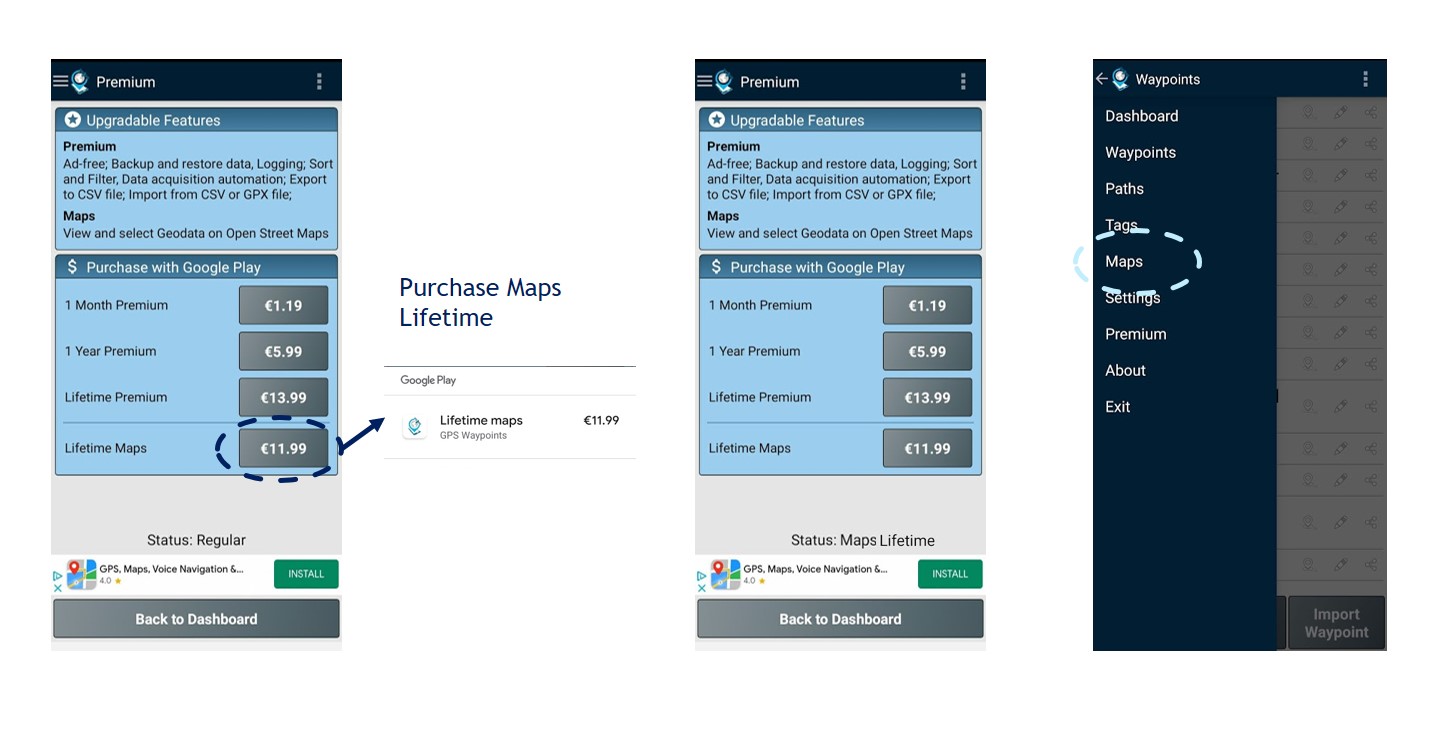
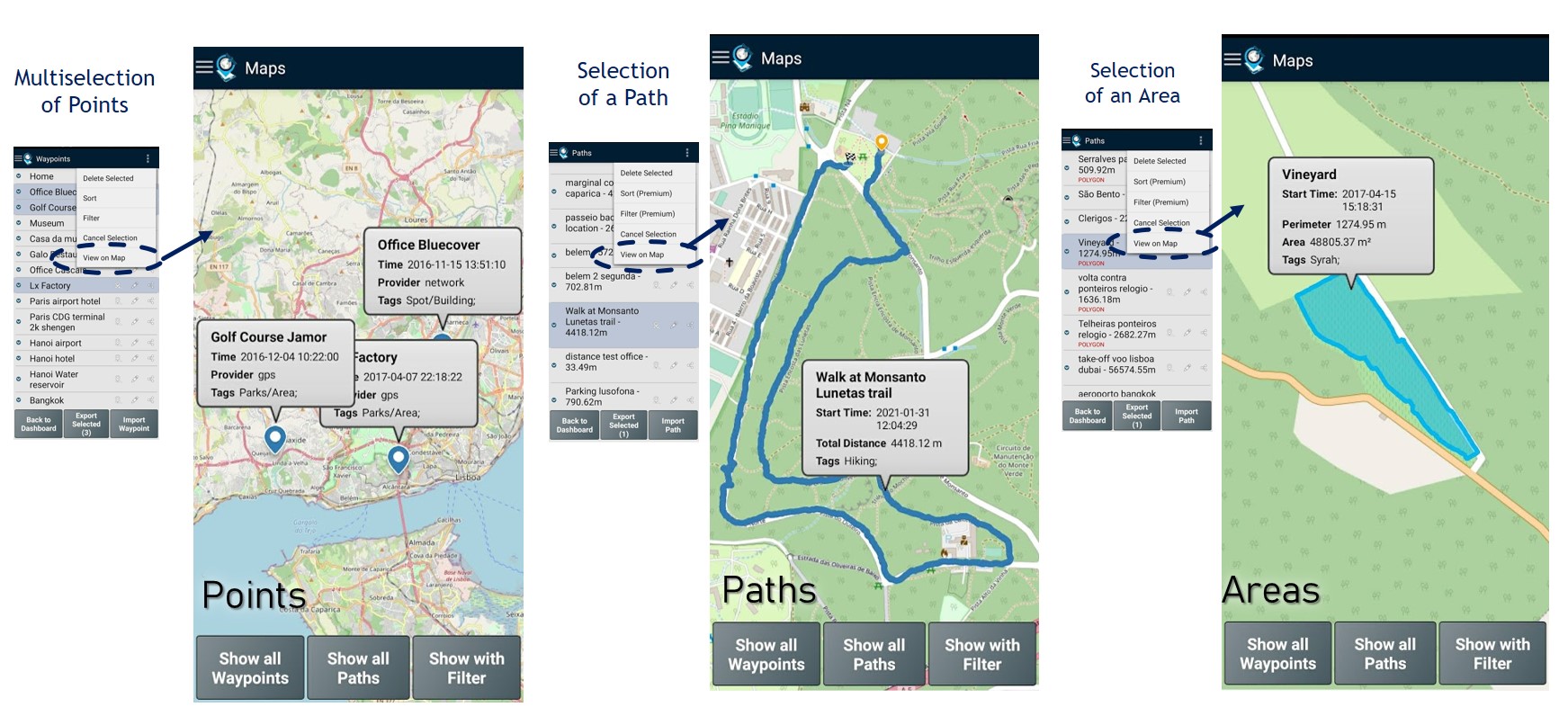
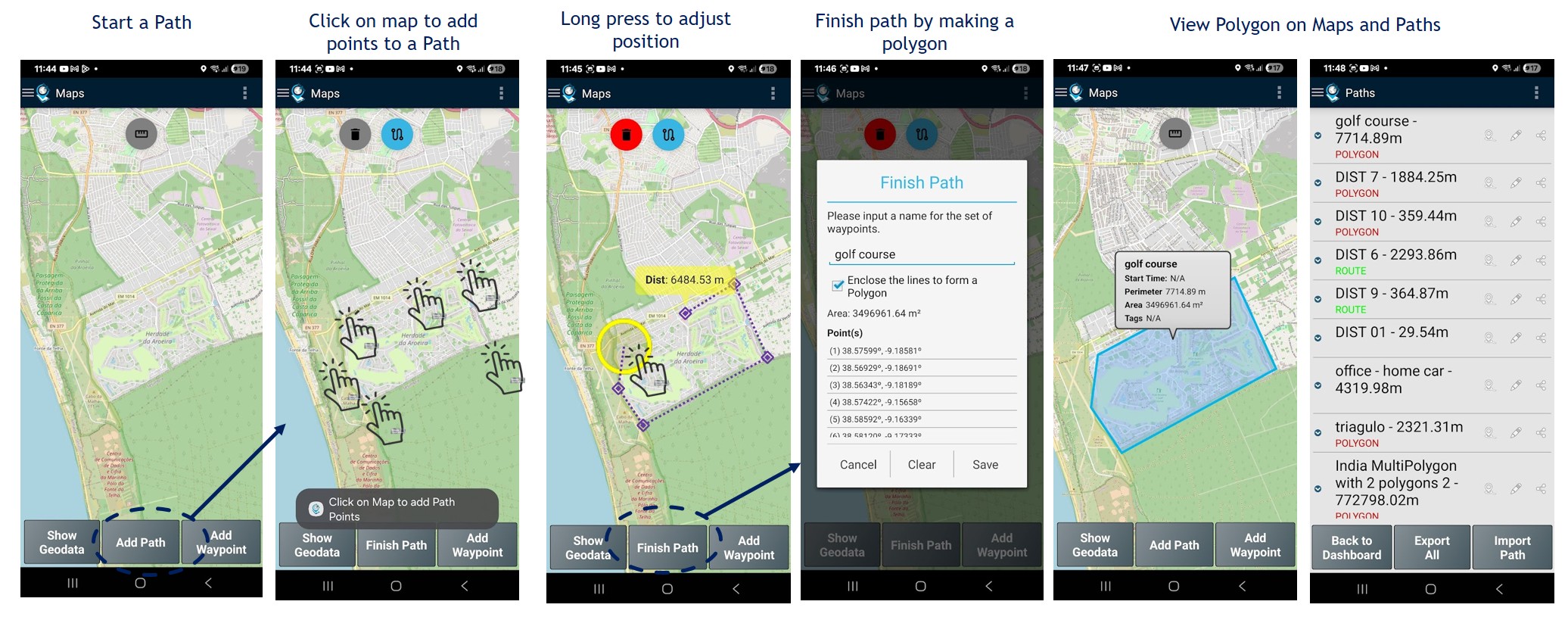
Visualize geodata on Maps: allows the spatial visualization of your geodata on a base map. Some examples of points, paths and areas (polygons) mapping visualization are provided in picture.
Create new Point by drag and drop its location on map: create a manual Point on Maps with the “Add Waypoint” button and move the pin created to the desired location.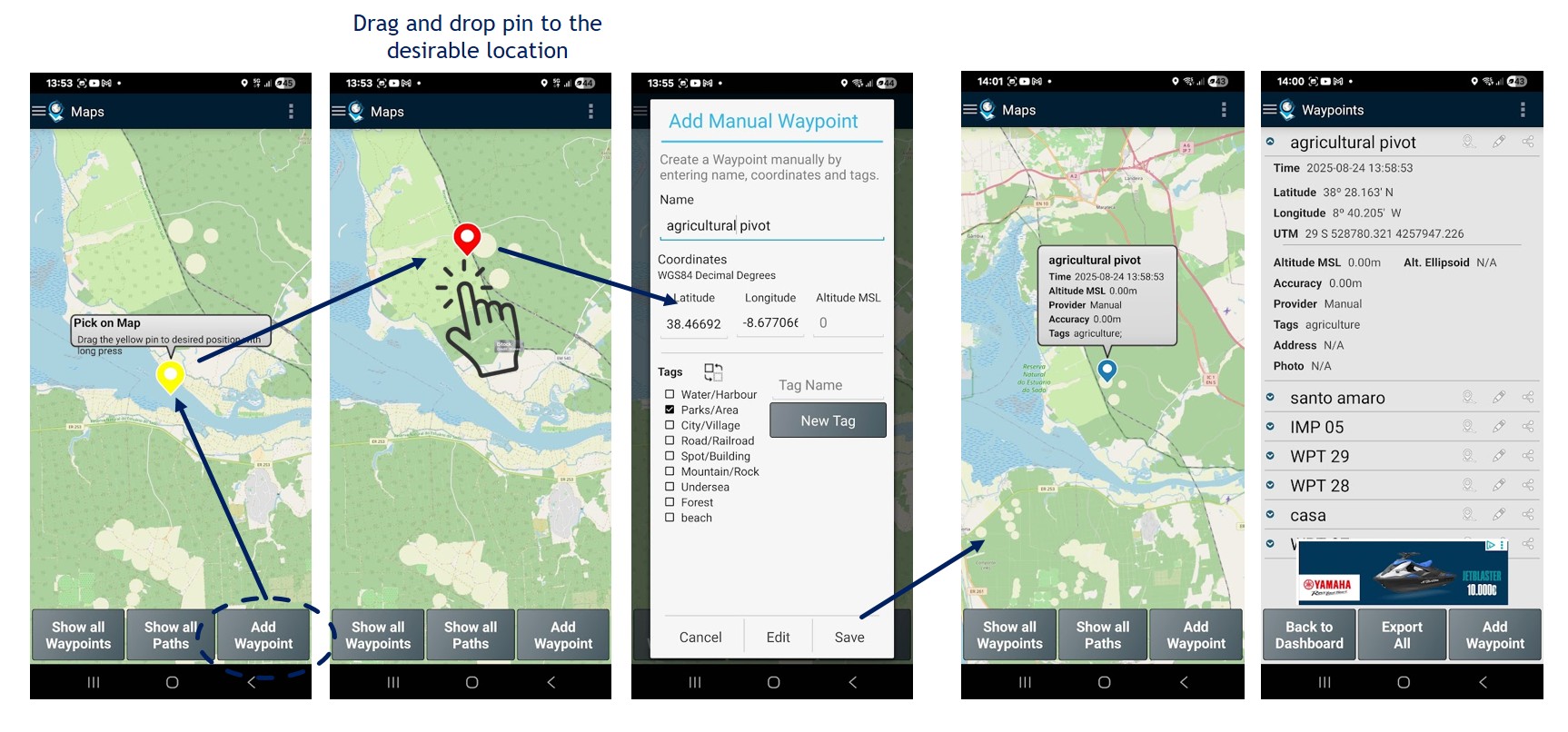 Create a Path or Polygon by drawing locations on map: add a new Path ou Polygon on Maps with the “Add Path” button and mark sequence o desired location.
Change basemaps: Your geodata is by default visualized with Open Street Maps background, but it can be changed to one of the basemaps below. The OSM and OpenTopo can be used with local scales while the USGS bases are low resolution for global scales only.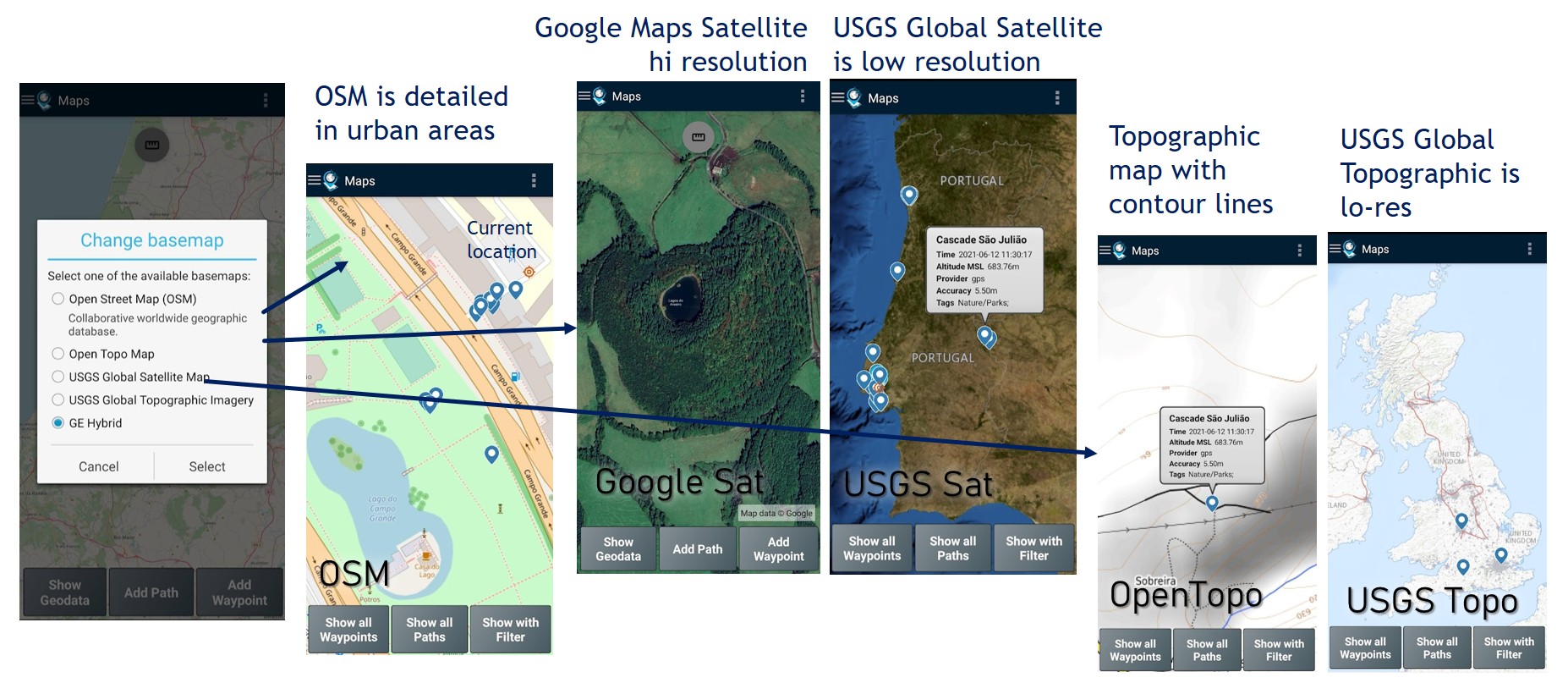
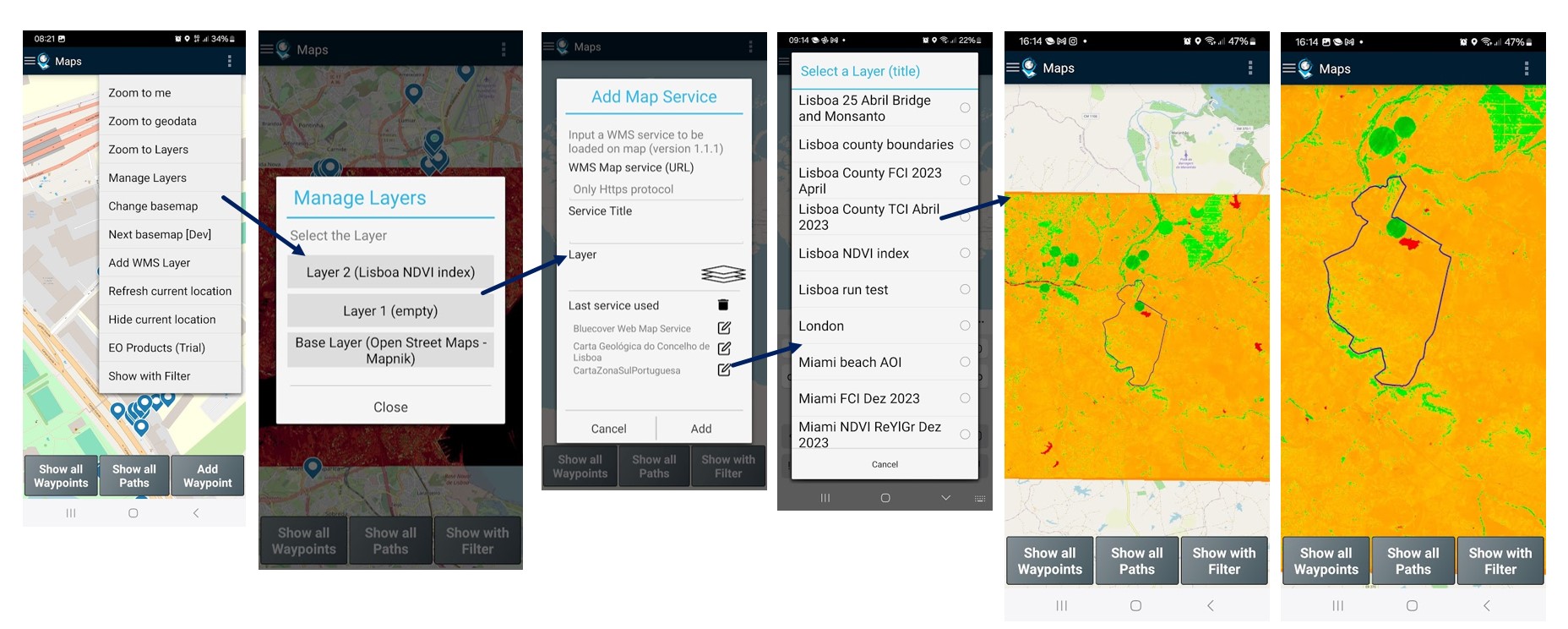
Use geo map layers to complement surveying: you can add and manage raster layers on Map to improve the visualization of your geodata. Two custom layers are available for using OGC Web Map Service (WMS) from private or public map servers. It typically allows to complement base map with the high resolution images of area under surveying or add thematic maps (geology, forest, etc…) to support your surveying and further analysis.
EO Images (Maps)
It is an autonomous feature on trial that is currently available for Maps subscribers only.
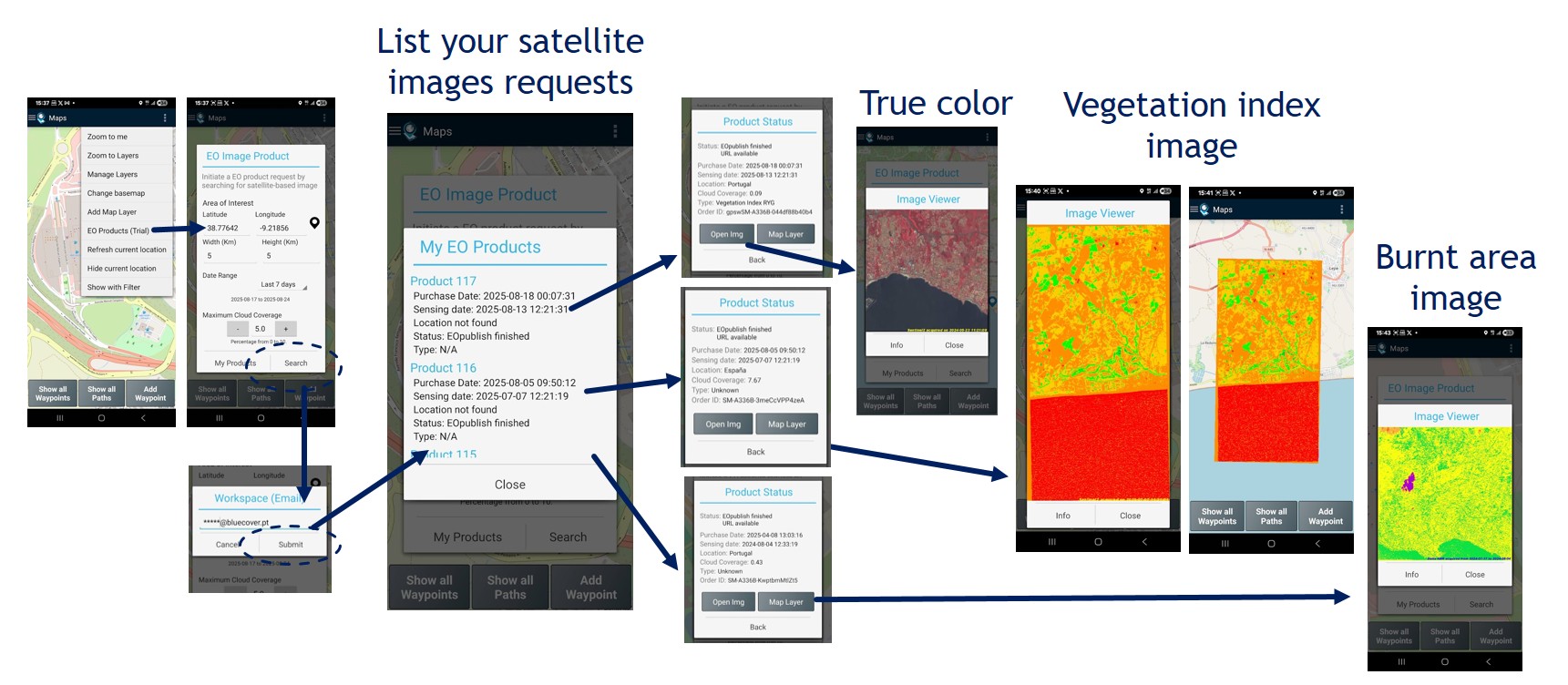
On-demand request of an Earth Observation image product: allows get and process an Earth Observation satellite image of a small area (up to 20kmx20km) since 2017 up to now, with the following processing types: true color, vegetation index (Red-Yellow-Green scale, False-Color scale, Natural scale) and Burnt Area. To proceed with a request, you need first to select the area and the date range desirable. Then, choose the image available from the archive catalog and order it. Processing will take a few mins. Be patient.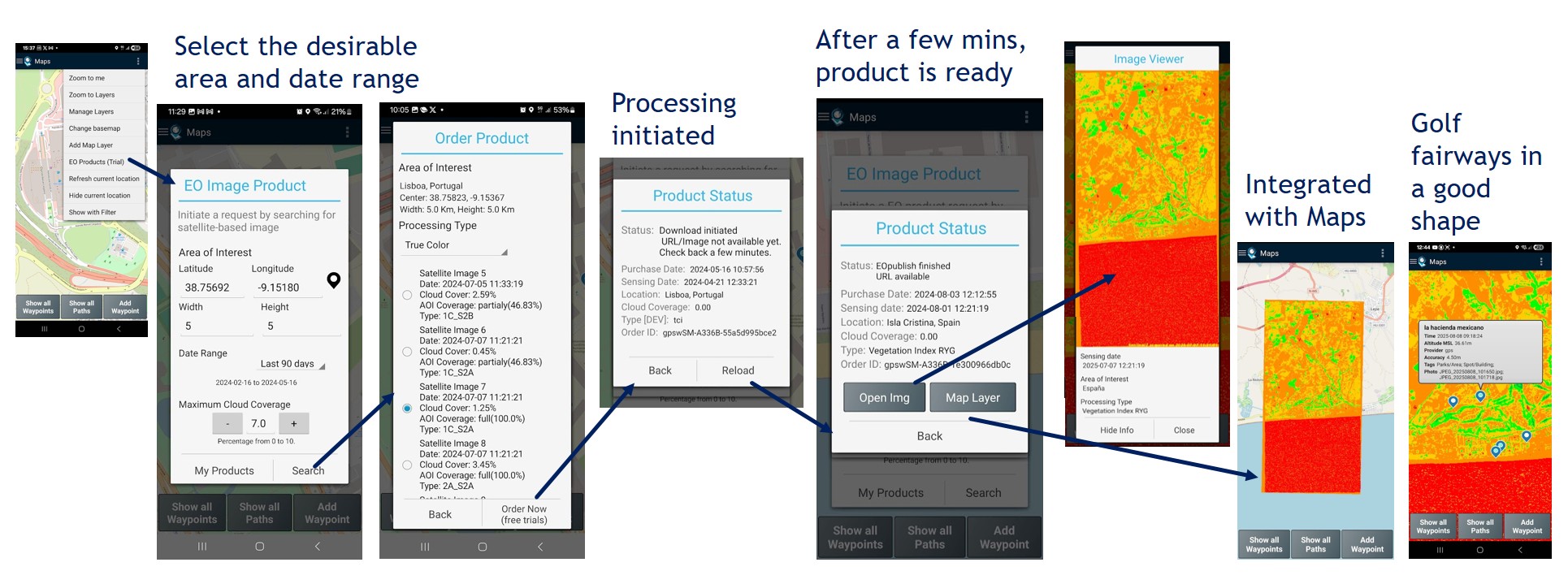
View my EO image products: allows to list and view all your satellite images requests, including the processing types’ true color, vegetation index (NDVI) and burnt areas.