Installation & Configuration
This is the part 1 of the user guide, that is composed of 3 parts, aiming to describe the installation, configuration, surveying and mapping functionalities of the product.
Part 1 Installation & Configuration
- Installation
- Configuration (including Backup and Restore)
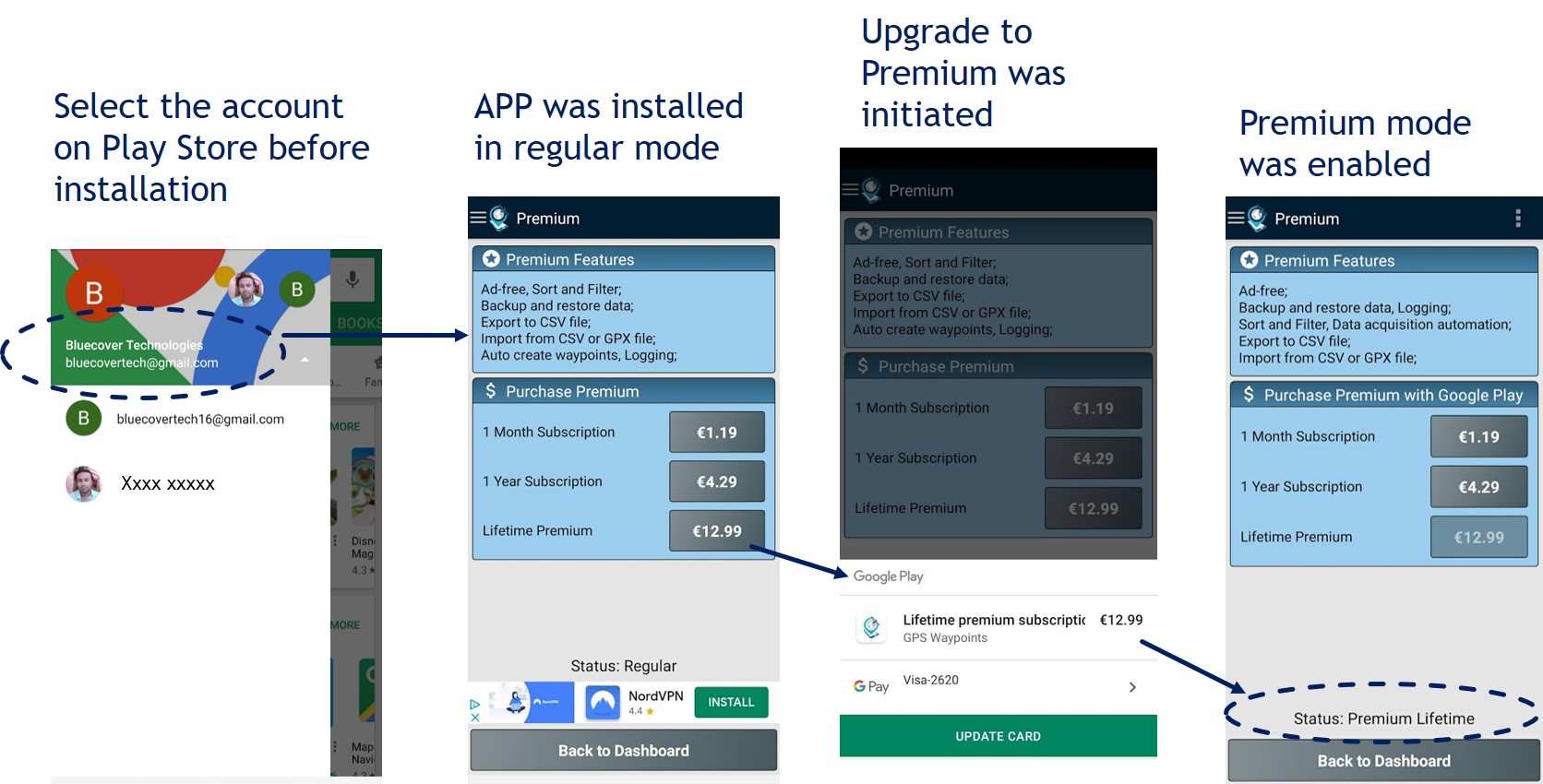
- Upgrade Premium
[ Index ] [ Part 1: Configuration ] [ Part 2: Location and Satellites ] [ Part 3 Waypoints and Paths ] [ Part 4 Maps ]
Installation and permissions
The application requires location, storage and Bluetooth permissions to be fully functional. The location and storage permissions are explicitly requested to the user during the insta llation process. Each of these permissions targets specific functions, as explained in the figure.
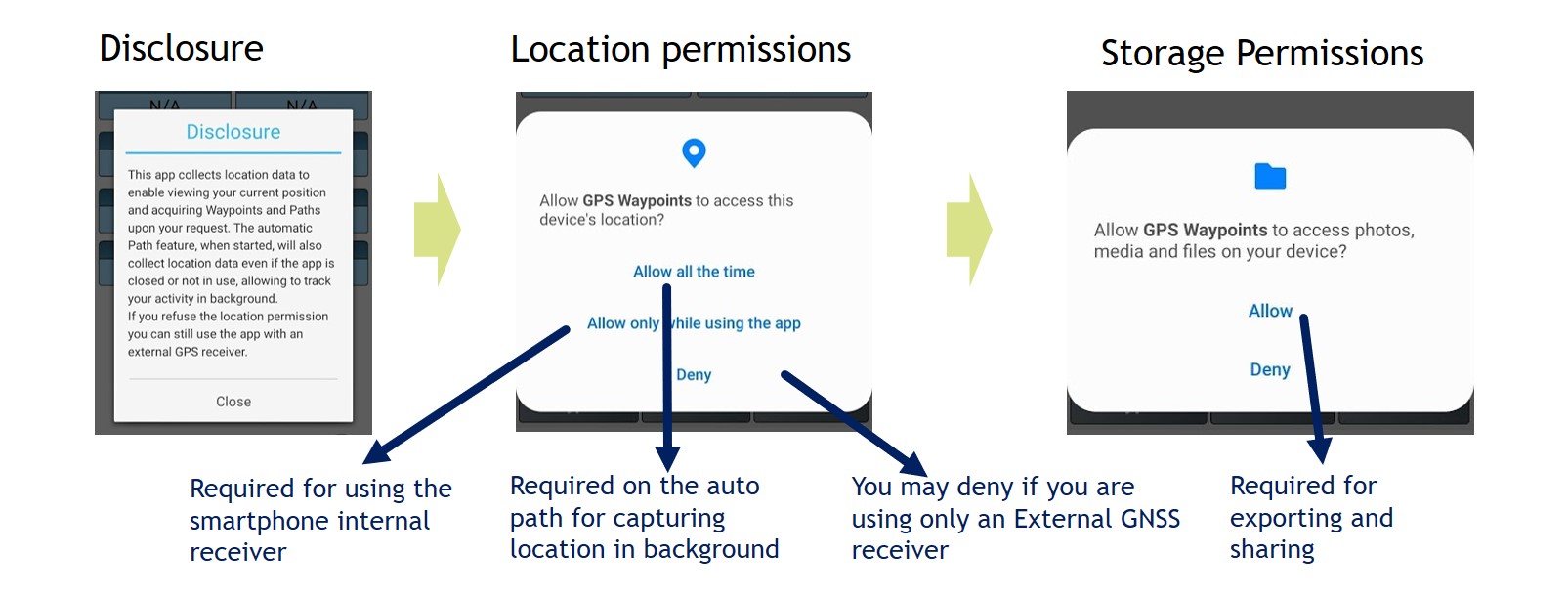
In case, you rejected permissions and you are now facing problems with your current location or geodata exports, you can restore the app permissions on your device Settings.
Configuration
The application can be configured to use either the internal GNSS receiver or an external GNSS receiver. The default configuration uses the internal receiver but it can be re-configured to use an external one.
Internal GNSS receiver: this configuration takes advantages of the new smartphone’s receivers, with improved accuracies from 1.5 to 5 meters, using GPS, GLONASS and other satellite constellations. It allows users to perform simple surveying activities using the location service from Android devices. The configuration when using the smartphone’s builtin GPS receiver is presented in the figure.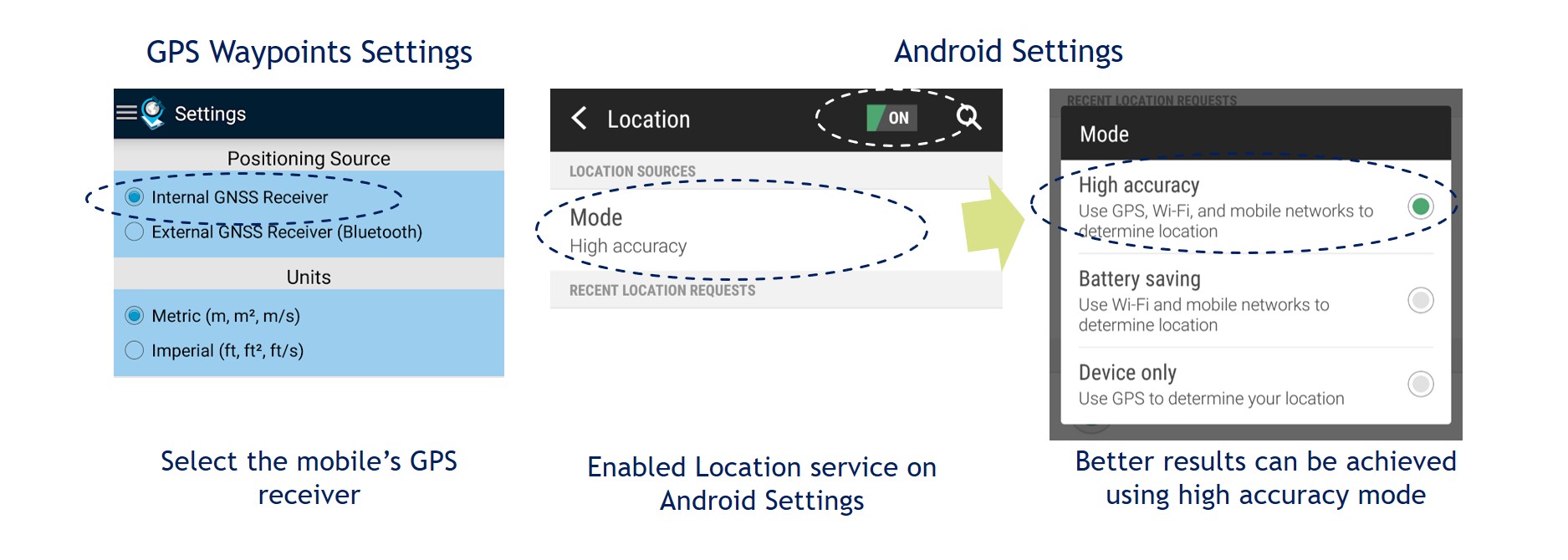
Connect to External GNSS receivers: This configuration also allows professionals to use Bluetooth external GNSS receivers to attain better accuracies (e.g. <1m). Firstly, setup your external device to use Bluetooth connections with NMEA messages and then pair the device with your Android smartphone. Finally, on GPS Waypoints Settings you need to select the “External GNSS Receiver” option and the desired Bluetooth paired device.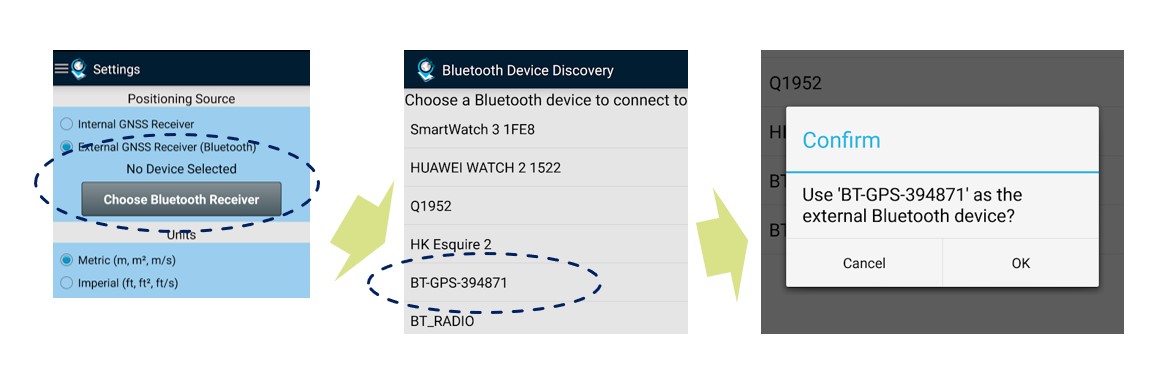
Backup and Restore: professional feature to backup and restore the user’s data for saving your work. It is especially useful when acquiring a large number of points or for transferring/migrating data for one device to another.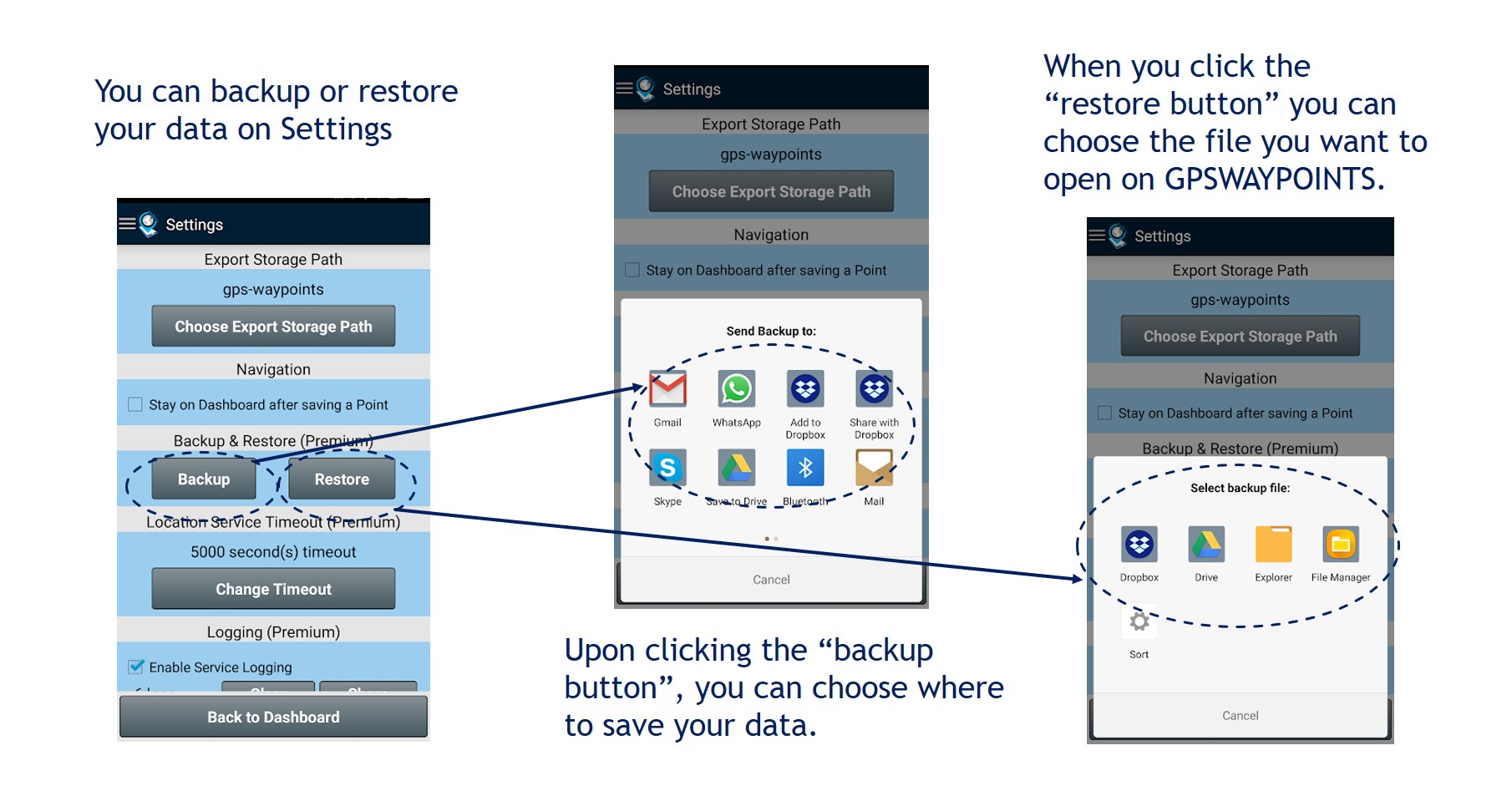
Premium purchase
Upgrade to Premium: This upgrade is a software activation feature from the application free version. It can be performed with Google Play online subscription services or using local license activation paid via Paypal. An example of using Google Play is provided in picture.